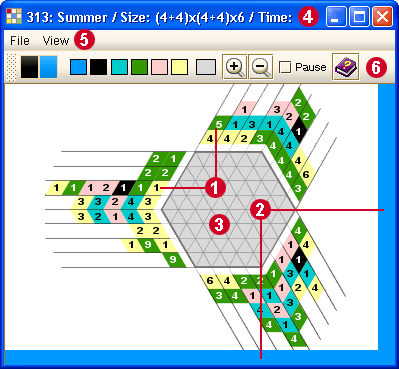
(Click on a red number to go directly to information about that item.)
The Clues Each clue indicates a group of contiguous triangles of like color.
The Background Color Between each group of like color there is at least one empty triangle (background color).
The Puzzle Area
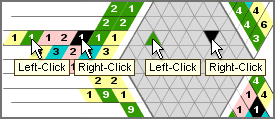
Left/Right-Click on a clue selects colors to the Left/Right mouse button.
Left/Right-Click in the grid places the selected color.
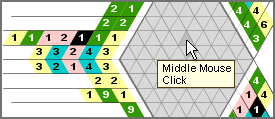
Click or drag the Middle Mouse Button to remove clues or background squares you placed on the grid.
Backspace - Use to undo 1 to 1000 steps back.
Ctrl-S - Use to save your work on the puzzle.
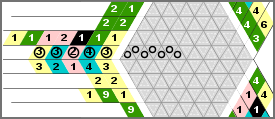
Shift+Left-Click - places a "o" on the clues and/or the grid area.
Ctrl+Left-Click - removes the "o".
Drag+Shift/Ctrl Left-Click - places/removes several "o"s.
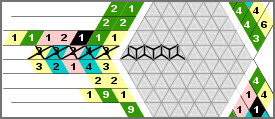
Shift+Right-Click - places a "Y" on the clues and/or the grid area.
Ctrl+Right-Click - removes the "Y".
Drag+Shift/Ctrl Right-Click - places/removes several "Y"s.
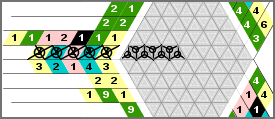
You can also place "o" and "Y" together on one clue or cell and get a 3rd option to mark your clues or cells on the grid.
The Info Bar This shows the Puzzle ID, its Description and Size, and the Time of your solving. If you are in "Hide Description" mode, the Description of the puzzle will not be viewable.
The Menu
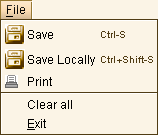
Save (Ctrl-S) - Use to save your work on the puzzle online.
Save Locally (Ctrl+Shift-S) - Use to save your work on your computer (offline). This feature is available only to subscribers.
Print -
Use to print the puzzle directly from the applet to your printer. You can print a partially solved puzzle or select Clear All to print the puzzle with a clear grid. This feature is available only to subscribers.
Clear All -
Use to clear the puzzle area completely. It'll remove all the triangles you drew on the grid and will reset the time to zero.
Exit - Use to close the puzzle window.
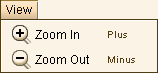
Zoom In (Plus) - Use to make the puzzle bigger. Zoom Out (Minus) - Use to make the puzzle smaller.
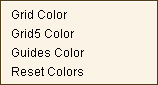
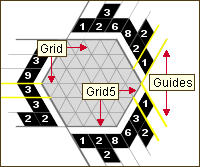
Select the colors that suit you best for the Grid line and the Grid5 line. Select your own color for the Guides - the bold outlines around the clues that show you on which line your mouse is.
The system sets these colors to be your preferences for all the puzzles. Use the Reset Colors to go back to the system's default colors. This feature is available only to subscribers.
The Toolbar
The Drag Area allows you to move the Bar on the screen by pressing and holding down the mouse button while moving the mouse. You can drag the Bar out of the frame and make it a floating window. If you close the window (click on the X) the floating window goes back to its place. You can also move it to another location on the screen (left, right, bottom).
The Markers indicate the colors of your Left and Right Mouse Buttons.
If you Left-Click on a clue - the Left Marker will change to the color that you clicked on. The same happens with the Right Marker if you Right-Click on a clue.
In 2-color puzzles the Left Button designates the Clues and the Right Button designates the Background as the default.
The Palette Panel:
This is a list of all the colors in use in the puzzle. Each square is clickable and places colors in the Left/Right Mouse Button.
You can also select colors by using a keyboard key (1-8): Keyboard key - Places colors in the Left mouse button. Shift+Keyboard key - Places colors in the Right mouse button.
is the color of the solving area. Use it to remove clues or background squares you placed on the grid.
Change Colors:
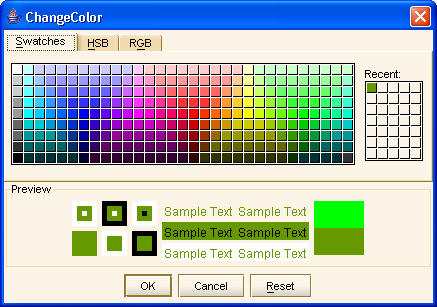
Clue Color: If you want to change the color of a clue - Double Click on a square (2nd - 8th) in the Palette Panel.
Background Color: If you want to change the color of the background - Double Click on the left square in the Palette Panel.
Solving Area Color: If you want to change the color of the solving area - Double Click on the right square in the Palette Panel. The system sets this color to be your preference for all the puzzles. Use the Reset Colors (under the View menu) to go back to the system's default color. This feature is available only to subscribers.
Use the Zoom In/Out buttons to enlarge or reduce the size of the puzzle.
Pause (Ctrl-P) - Use to stop solving temporarily. The time in the Info Bar stops and clues disappear until you press Ctrl-P again.
Auto Pause Function - if you are inactive for 10 minutes the applet automatically pauses itself. This feature is available only to subscribers.











 is the color of the solving area. Use it to remove clues or background squares you placed on the grid.